

You run our script as root. Check that it is really ours
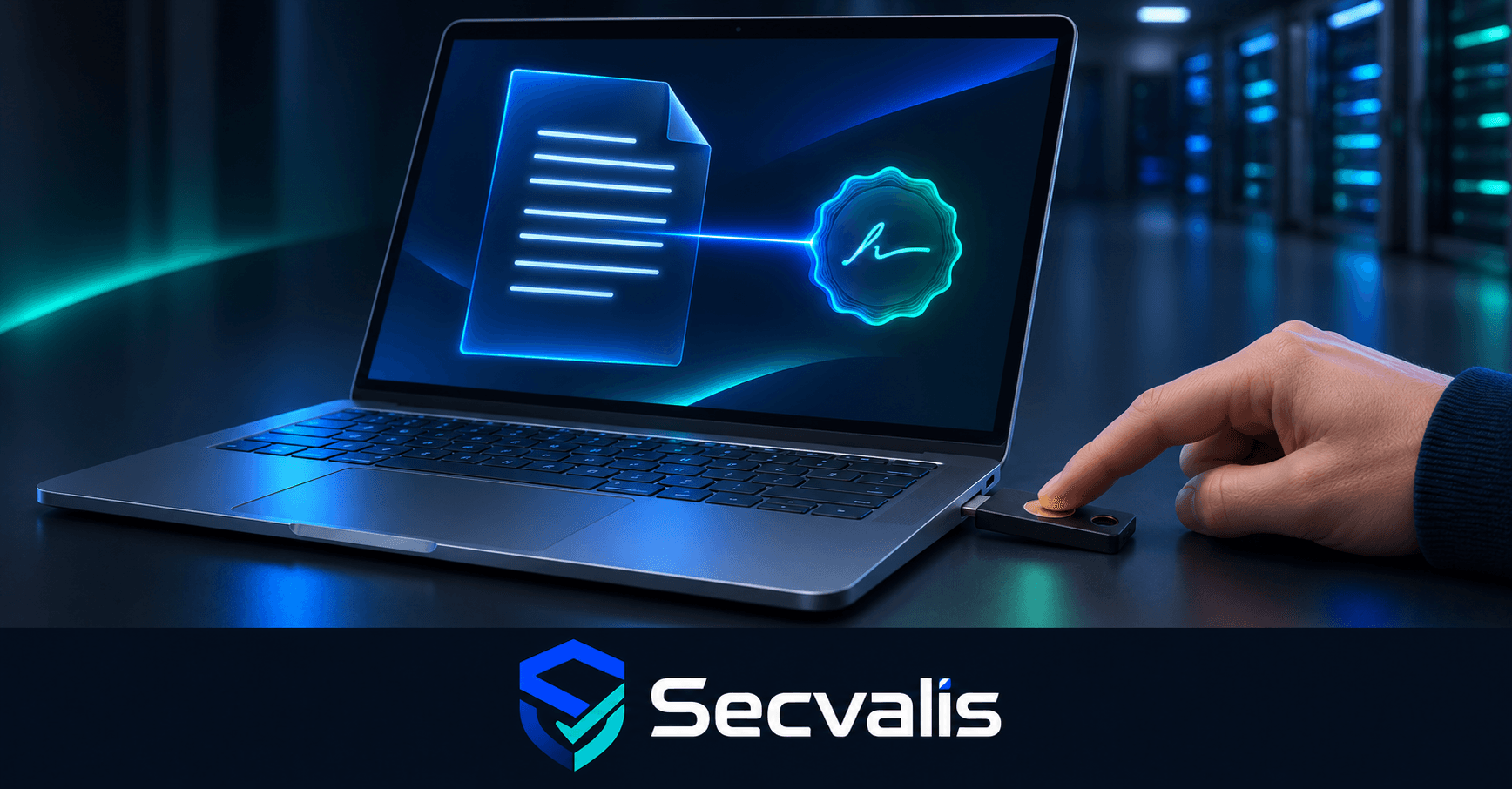
You run the agent script as root on each server. That gives the code broad permissions on the machine where it runs. If someone takes over the place from which you download the file, they can replace it before execution. Across a fleet, one mistake in trusting the source can affect many hosts.
Until now, a SHA256 checksum helped establish that a file arrived intact. It did not answer who published the file when both the script and checksum came from the same server. Someone able to replace both could provide a new checksum too. Starting with version 1.4.3, Secvalis publishes a signature that you can verify yourself on your workstation.
What changed in version 1.4.3
Each release is signed with an ed25519-sk key held on a YubiKey hardware key. Creating a signature requires a PIN and a physical touch of the key. The private key is not an ordinary file on the CI server, so remotely starting a CI process is not enough to sign a release.
There are two keys, a daily key and a backup key. The verifier knows both public keys. Their fingerprints are:
- daily:
SHA256:DQVo2XI/gJ6cBSV3AdiLgSrLnSJkcYWyJlJfZ9Qsim0 - backup:
SHA256:nYvBQ9GeKOglNKXjn/nDpzQ1pH/cZgXL+Yx/ybM0sfU
The script and signature for each version are also in the public GitHub repository, under the v<version> tag. The tag is the version source for verification, rather than an address that changes with every release. You verify on your own workstation, using keys you pinned and compared with independent publications.
A valid signature says that the contents match a signed release. It gives the administrator a reference independent of the place serving the file. It does not replace the decision about whether a particular version should be deployed in a given environment. It also does not say whether that version was later withdrawn. The REVOKED file on the main branch is a separate list of versions that must not be used. If we find a problem after release, the signature remains valid, but the version must be rejected using that list. That is why checking REVOKED remains necessary even when the previous command ended with Good. Do not treat the cryptographic check as the only deployment decision.
CI runs two checks related to this process. agent-signature checks that the script in our repository has a valid signature matching the pinned keys. agent-github-match compares the script and signature bytes in our repository with the files in the GitHub tag. The signature check runs in every pipeline that builds production, and the GitHub comparison runs when the script or signature changes. A failure in either blocks deployment. These checks belong to the release process. They are not signature checks performed by the dashboard or installer.
Five verification steps
The complete commands are on the script verification page. Use that page rather than copying commands from an article, because it contains the current public keys and exact procedure. In short:
- Write the public keys to
allowed_signersand compare the displayed fingerprints with those above and with publications outside the Secvalis server. - Determine the version from tags in the public repository, then download the script and signature from that tag. Do not treat the version offered by the dashboard as the trusted source.
- Run
ssh-keygen -Y verifywith identity[email protected]and namespacesecvalis-agent. - Check that the version in the script matches the tag and is not older than the last version you approved.
- Fetch
REVOKEDfrommainand confirm that the version is not listed.
Verify the file before handing it to your deployment tooling. This makes it clear which bytes you checked and lets you pass the same copy along. If you download the file again on another workstation or change it while preparing deployment, verify the specific copy that will reach the hosts. Do not assume that a filename means identical contents. Keep the approved version number and the verified file under your change procedure, so that later you can tell which bytes were approved for deployment.
A successful verification ends with a line like this:
Good "secvalis-agent" signature for [email protected] with ED25519-SK key SHA256:DQVo2XI/gJ6cBSV3AdiLgSrLnSJkcYWyJlJfZ9Qsim0
Measurements on 7 November 2026 in clean containers confirmed the process on Ubuntu 20.04 with OpenSSH 8.2, Debian 11 with 8.4 and RHEL 9 with 9.9, and separately on macOS with the system OpenSSH 10.3. Appending one character to secvalis.sh makes verification fail. This shows that the signature is tied to the exact file contents. The result applies to those environments and this procedure, not every possible distribution or OpenSSH configuration. When a command does not work, distinguish an unsupported option from a rejected signature. In the first case, move verification to a supported workstation instead of skipping the step.
You obtain the version from GitHub tags, not from the dashboard. This matters because a compromised server could offer an older version with a valid signature. Comparing it with the last version you approved helps detect a downgrade attempt. Signature verification alone does not tell you whether a release is current. On the first verification, leave the approved version field empty. After accepting a release, record its number in your operating process. For later deployments, compare it with the number found in the file. This local record matters because signatures for old versions do not disappear when a newer release is published.
Where to verify
You need OpenSSH 8.2 or newer. Measurements confirmed the commands on Ubuntu 20.04, Debian 11, RHEL 9 and macOS. RHEL 8 has OpenSSH 8.0 and does not support ssh-keygen -Y verify. In that case, use another administration workstation. You do not need your own hardware key to verify a signature. The YubiKey is used to sign a release, not to verify it. You can therefore prepare a verification workstation without access to the publisher’s hardware. What matters is having a trusted copy of the public keys and comparing their fingerprints across independent locations. If you cannot make that comparison, a standalone allowed_signers file downloaded alongside the script is not independent confirmation.
What this check does and does not do
Verification helps only if you perform it on your side before deployment. The dashboard and installer do not verify the signature for the administrator. Downloading the script from the dashboard does not replace checking the file and signature from the public tag. After verification, you can compare the dashboard file byte for byte, but that is a separate comparison. It answers whether the file offered by the dashboard is identical to the copy you checked earlier. It does not move signature verification into the dashboard or change the version source from which you began.
A signature confirms the origin of a release from whoever controls the matching key. It does not prove that the script has no bugs or that its behavior will be right for your environment. Review the differences from the last version you approved and read the changes. Then try the approved bytes on one host with --dry-run before distributing them further.
Compare fingerprints in several places: on the trust page, in the GitHub repository and in the LinkedIn post of 10 November 2026, which publishes them outside our infrastructure. One source does not provide an independent comparison. If fingerprints differ by even one character, or any required step fails, stop the rollout and investigate the discrepancy. Do not edit a key by hand, disable a check or treat a network error while fetching the revocation list as a positive result. The procedure distinguishes OK from STOP; proceed only after the former.
The script verification page has the commands and full sequence.
Need help with deployment? Contact me at https://sysdevops.eu/kontakt. We will agree the scope, confidentiality and formal arrangements individually.
Weekly CVE digest
One email a week with newly published vulnerabilities worth knowing about. No account needed.
This digest covers new vulnerabilities in general, not your servers. If you want to know which of them actually run in your infrastructure, that is what Secvalis does: it scans your machines and reports only what concerns them.